Release 4.1
 Contents |
 Index |
| Discoverer 4i Plus Online Help Release 4.1 |
|
Databases often contain enormous amounts of information, and one key task necessary to work with a database efficiently is to find the specific information you want to see or analyze. Discoverer has a number of ways to filter out the data that you don't need to see and to find the specific data you want. Discoverer has filtering techniques both when you open a workbook initially and as you are working with the data.
The two basic ways to filter out unnecessary data and find the specific information you want when opening a workbook are to select Parameters and to apply Conditions.
Parameters actually use Condition statements to find specific data. However, unlike regular Conditions that find the same data each time they're applied, Parameters offer choices at the time the worksheet opens. For example, if the two Parameters for a worksheet are Department and City, the underlying Condition statement is "Find all the data about <Department> for a <City>". The two Parameters are essentially placeholders in the Condition statement until the person opening the worksheet picks a data value for each one. Then, Discoverer finds all the data based on the selected values. Click to learn more about Using Conditions.
Although similar, Parameters and Conditions are designed for different purposes. Parameters offer you a choice and help you open a workbook quickly to see just the data that you want to see. Conditions are specific, fixed statements. Conditions are designed more for analysis so you can apply Condition statements while you are involved with data analysis to find very specific sets of data. However, Conditions and Parameters can also be used with each other for more sophisticated filtering procedures.
The main benefits of using Parameters are:
A Discoverer user often creates Parameters when creating the initial workbook. However, anyone with the proper access rights (granted by the Discoverer Administrator) can create Parameters too. When creating or choosing Parameters, the term data values refers to the choices offered by the Parameter. For example, if the Parameter is for choosing the cities for which you want to see data, the city names are the data values, that is, New York, Los Angeles, Denver are the data values for the Parameter to choose cities.
When opening a workbook you'll choose the data values for the Parameters. But if the Parameters do not offer the choices you want, you can create your own data values.
Click to learn how:
To create a new Parameter:
To edit an existing Parameter:
To select different Parameter values:
See also:
Choosing Data Values for Parameters When a Workbook Opens
When opening a worksheet with pre-defined Parameters, a dialog lists the Parameters so you can select the ones you want on the worksheet.
Note: Although choosing a data value for a Parameter limits the data initially displayed on the worksheet--for example, you limit the data to New York only--Parameters do not limit the data available for the worksheet as you are working with it. You can always add any additional data as you are working on the worksheet. Also, you can change Parameter values every time the query is refreshed, and you can edit Parameter values from the menu.
Depending on the design of the Parameters, you can choose:
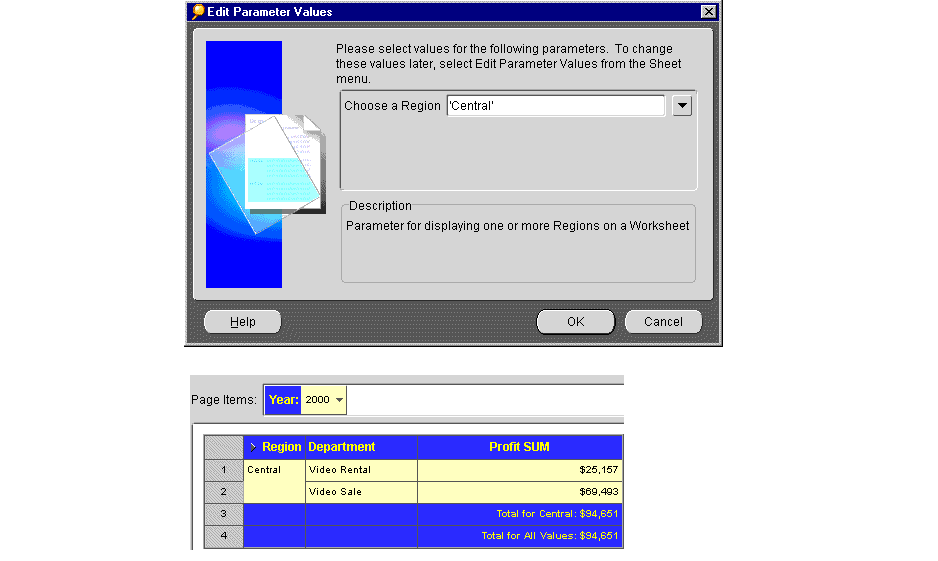
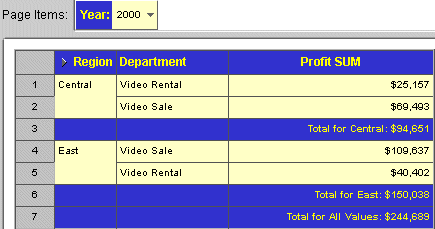
The worksheet appears and contains data only for the values you chose. In the example below, the Parameter value Central is selected. The resulting worksheet contains data only for the Central region.
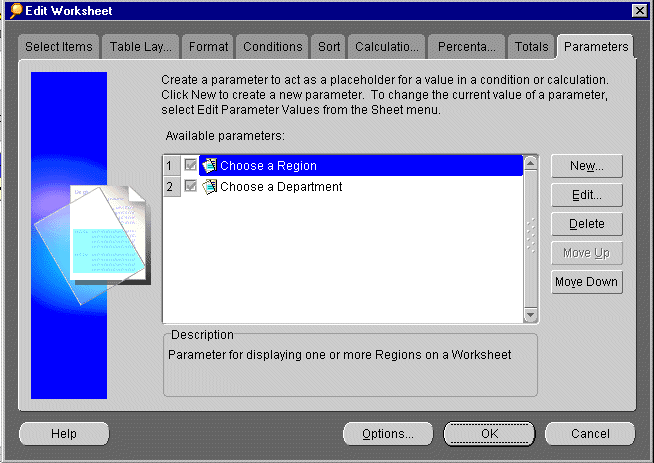
Because Parameters use Condition statements to find specific data, creating a Parameter is similar to creating a simple Condition statement. You specify the data item to use for the Parameter, for example, the list of city names in your database, and then specify the choices available for that Parameter.
In addition to creating Parameters, you can edit them to change their default values, descriptions or headings. For example, if your company adds a new store to a sales region, you may want to edit the Parameter so that the new store is the default value for the Store.Name Parameter.
You can create Parameters at two levels:
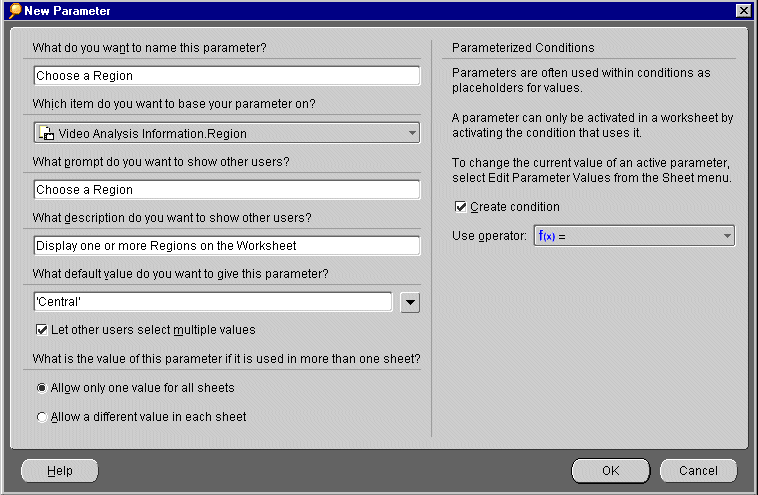
What do you want to name this Parameter--type the name that you want to appear in the Parameters dialog. If you don't type a name, Discoverer inserts a default Parameter name.
Which item would you like to base you Parameter on--select the data item for the Parameter from the drop down list. For example, to create a Parameter for selecting a city, select the data item that contains the city names. The list shows the data items currently used in the worksheet. It also shows all items related to the items selected in the worksheet and all calculations.
What prompt do you want to show to other users--this text appears in the dialog that appears prior to opening the worksheet; type text that prompts the user to make a selection.
What description do you want to show to other users--this text also appears in the dialog; it explains the Parameter.
What default value do you want to give this Parameter--this is the pre-selected data value for the Parameter. Click the drop down arrow and select a data value from the list, or type the default value directly into the box.
Let other users select multiple values--select this option if you want the person using the worksheet to be able to select multiple data values for the Parameter when opening the worksheet. If this option is not selected, the person can choose only one value for the Parameter.
What is the value of this parameter if it is used in more than one sheet?--allows you to create the Parameter either at Workbook level or Worksheet level.
Click 'Allow only one value for all Sheets' to make the parameter value cascade across all worksheets in the workbook. Click 'Allow a different value in each Sheet' to make the parameter value apply to the current worksheet only.
Parameterized Conditions refer to Condition statements that use a Parameter in their formulas. For example, if the Condition statement uses City in its formula, and you select New York as the data value for the Parameter, the Condition statement use New York as the City in the formula.
Create Condition/use operator--creates a Condition with an operator. You can select the operator from the drop list. For example, select equals (=) to create a Condition with the formula "For Item" = "Parameter's Name." A typical use of this feature is to find data values greater then (>) or less than (<) a data value. For example, to find all the data after the year 1997 the Condition formula is "Year" > 1997. The worksheet then appears with data from 1998 on.
Note: If you are creating a Parameter as part of a Condition, the portion of the dialog for creating Parameterized Conditions is not available because you are already defining a Condition.
Moving the Parameters up and down in the Parameters dialog changes their position in the dialog that appears when opening a worksheet.
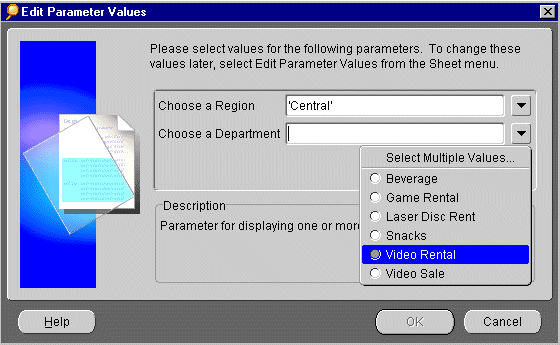
The Edit Parameter Values dialog appears, and you can specify the data value. The worksheet now displays the specific result for the data specified in the Edit Parameters dialog.
Parameters that are part of an active Condition are automatically activated as well. If you select the option Create Condition/use operator in the New Parameter dialog, a new Condition is created and activated, therefore the Parameter is also activated.
To deactivate a Parameter, deactivate the Condition. Deleting the Condition deletes the Parameter and vice versa.
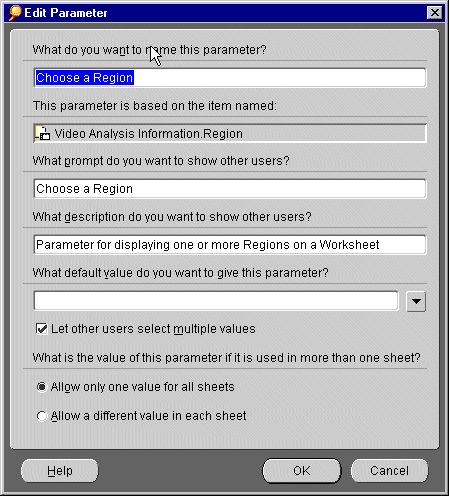
What do you want to name this Parameter--type the name that you want to appear in the Parameters dialog. If you don't type a name, Discoverer inserts a default Parameter name.
What prompt do you want to show to other users--this text appears in the dialog that appears prior to opening the worksheet; type text that prompts the user to make a selection.
What description do you want to show to other users--this text also appears in the dialog; it explains the Parameter.
What default value do you want to give this Parameter--this is the pre-selected data value for the Parameter. Click the drop down arrow and select a data value from the list, or type the default value directly into the box.
Let other users select multiple values--select this option if you want the person using the worksheet to be able to select multiple data values for the Parameter when opening the worksheet. If this option is not selected, the person can choose only one value for the Parameter.
Tip: You can click the Refresh icon to display the Edit Parameters dialog, (or choose Sheet | Refresh Sheet).
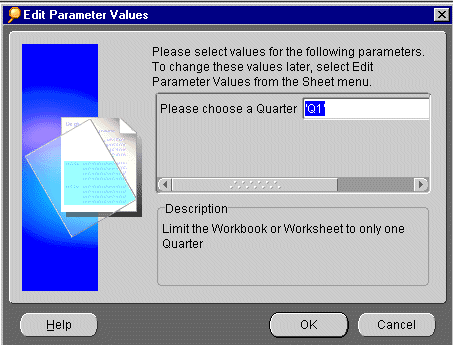
You'll see the results corresponding to the data value you have chosen.
A Condition is a statement for finding specific data. Turning on a Condition filters out the data that does not meet the Condition, and displays only the data that you want to see.
The following examples illustrate the concept of Conditions.
The year 1998 was your best ever and you want to analyze sales data from 1998 in detail to pinpoint why the business was so successful. To run the analysis, you need to see data only from 1998.
The Condition statement is: Year=1998. Data from the other years is not displayed.
The stated business goal of your company is for each store to generate daily profits in excess of $3000. You want to find out which stores already exceed their profit goal of $3000.
The Condition statement is: Profit SUM>3000. Data from all stores with profits greater than $3000 is displayed and you can quickly see which stores already meet their goal.
On the other hand, to see the stores that haven't generated $3000 in daily profits yet, the Condition statement would be Profit SUM <3000.
Worksheets can have many Conditions previously defined by the Discoverer Administrator, or by you. If you have the privilege to edit a worksheet, you can pick and choose which Conditions to apply to see the data you want. In addition, if none of the existing Conditions filters the data exactly as you want, you can create your own Condition statements and apply them.
Click to learn about:
Using Conditions
Creating New Conditions
Applying Conditions to Worksheets
Grouping Multiple Conditions
Editing and Deleting Conditions
Conditions previously defined for a worksheet are listed on the Conditions dialog. You can turn these Conditions on and off to find the data you want to see. Turning a Condition on displays only the data that meets the Condition. Turning a Condition off restores the other data to the display.
Turning on a Condition filters out the data you don't want to see. If you want to see all the data again, turn the Condition off.
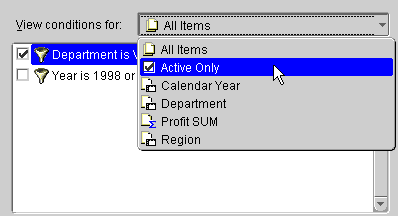
<data item>--lists Conditions that apply only to the selected data item.
All Items--lists Conditions defined for all items in the workbook.
Active Only--lists only the Conditions turned on for the current worksheet.
CAUTION: Do not click the Delete button to turn off a Condition. The Delete button permanently removes the Condition from your workbook.
If you select two (or more) Conditions that conflict, a warning appears. For example, the two Conditions "Year = 1994" and "Year = 1995 or 1996" conflict because the first Condition removes data for all years except 1994 and the second Condition tries to display 1995 and 1996 at the same time.
Complex conflicts may not be detected. In that case the worksheet appears with no rows of data.
If none of the existing Conditions filter the data to find the specific information that you want to see, you can create your own Condition statements. This section explains how to create relatively simple Condition statements. The section, Grouping Multiple Conditions, explains how to create more complex Condition statements.
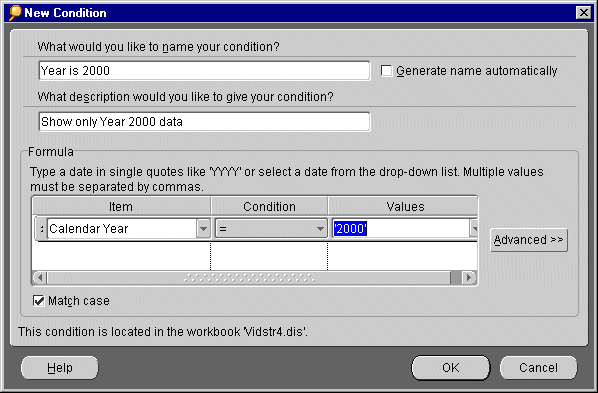
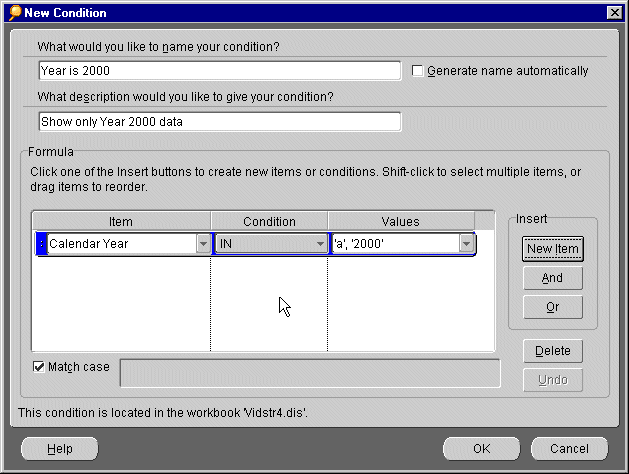
What would you like to name your Condition--Type a name in the text box. To automatically generate a name for the Condition based on the data item, the Condition, and the values that you select for it, check the box Generate name automatically.
What description would you like to give your Condition--For simple, straightforward Conditions, the name and description are usually sufficient to explain how the Condition will filter the data. However, advanced Conditions might need more detailed descriptions for clarity. Descriptions typed here appear in the Conditions dialog when the Condition is selected. If you don't enter a description, the Condition formula automatically appears as the description.
The drop down list shows the data items in the workbook that you can use for the Condition. The list shows all the data items in the workbook, not just those data items currently being displayed on the worksheet. You can use any data item defined for the workbook to create a Condition.
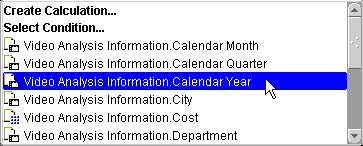
Other options on the drop-down list include Create Calculation and Select Condition, which use calculations or other Conditions to create the first part of the Condition. If you are editing an existing Condition, the option, Copy Condition, appears on the drop-down list. It is for quickly replacing an existing Condition on the Edit Condition dialog. A list of defined Condition appears and you can select the one you want. It replaces the currently selected Condition in the Edit Condition dialog.
If you select an existing Condition as the item, the boxes for the Condition operator and value are removed because the Condition you select is already complete.You can then use the Condition to create a more advanced Condition.
The drop-down list of values is a shortcut so you don't have to manually type the data value for an item. However, data values for various items might or might not appear in the list, depending on whether your Discoverer Administrator set up the workbook to show lists of values for different items. If clicking the Value(s) drop list button shows a list of data values you can then select the value you want for the item instead of manually typing it.
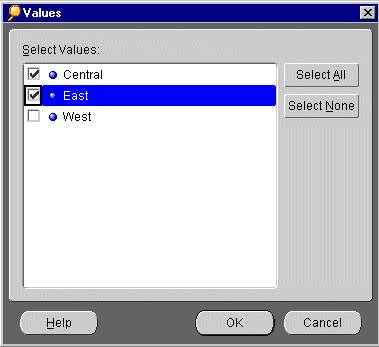
For example, if the three values for the data item named Region are Central, East, and West, selecting "Region is equal to," and then clicking the drop list button displays Central, East, and West as the choices.
The following example shows a Values drop-down list with choices for cities.
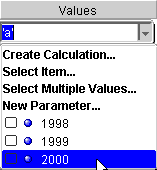
To use the results of a calculation as the value, select Create Calculation. A dialog for creating a new calculation appears.
To use another item as the Condition's value, choose Select Item. A list of the items in the worksheet appears and you can select an item from the list.
If the selected item for the Condition has Parameters defined for it, you can choose the option Select Parameter from the drop-down list to select an existing Parameter for the item.
If the Condition's Parameter definition include the option for selecting multiple Parameters, you can choose Select Multiple Values from the drop-down list. A list of data values appears and you can select the ones you want.
You can also create new Parameters for the item by selecting New Parameter from the drop-down list. The dialog for creating new Parameters appears.
NOTE: If you use Parameters in a Condition, the Parameter appears in the formula with a colon in front of it, such as ":myParameter." If you are using calculations, the calculation appears with an equals sign in front of it so Discoverer knows it is a calculation The Condition will then substitute the results of the calculation for the item or value where you specified a calculation. Using the equals sign you can also type a calculation directly into the Item box or Value box, such as "=Profit.SUM = Sales.SUM".
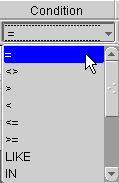
To create a Condition, you use a Condition operator to produce the statement. The following table lists the operators and some examples.
NOTE: Put Text in Single Quotes: When you create a Condition with text for the value, the text must be enclosed in single quotes. For example, in the Condition Region = `Central', the text value, `Central', must be enclosed in single quotes.
You can group multiple Condition statements. Conditions consisting of multiple statements are connected using the AND and OR operators. You can also nest statements, so one statement is contained within the definition of another statement.
NOTE: There isn't a NOT operator, but you can create negated Conditions by using complementary operators.
Examples:
Find data from stores with profits greater than $3000 in 1995.
The Condition statement is: Profit SUM>3000 AND Year=1995. Data from other years and from stores with less profits is not displayed.
Find the data from all the stores in California, plus all the stores that have profits of $3000.
The Condition statement is: State='CA' OR Profit SUM>3000. The data display shows data from all the stores in California regardless of profits, and all those from any state with profits in excess of $3000.
Discoverer adds Insert buttons for New Item, And and Or. You use these buttons to create the advanced Condition.
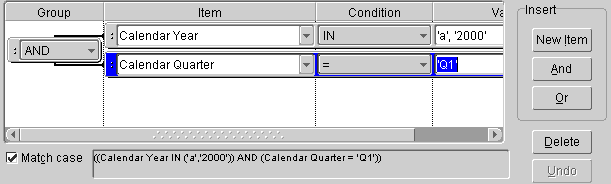
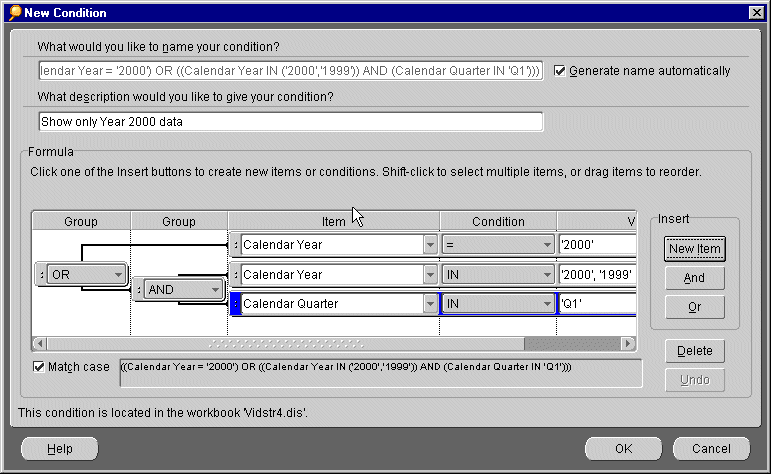
Notice the new Group column added at the left side of the dialog. The Group column indicates how the statements are grouped by the operator. By default, when you first write multiple statements they are grouped with the logical AND operator. To change the group operator to OR, NOT AND, or NOT OR, click the drop-down menu next to it.
Discoverer displays the formula at the bottom of the dialog so you can verify that the statement's logical construction is correct.
NOTE: You can drag Conditions and items on the dialog. Dragging Condition A onto Condition B replaces Condition B with Condition A. You can also select Copy Condition from the Item drop-down list. In that case the values of the copied Condition replace the values of the selected Condition.
The operators can also be "nested" to several levels to group multiple Conditions. For example, the Condition to find data from stores with costs greater than $1000 in 2000 or from stores with costs greater than $1000 in the East sales region for any year is: Cost>1000 AND (Region='East' OR Year=2000).
The formula at the bottom of the dialog shows the new statement construction.
NOTE: Using the AND and OR operators can be tricky especially when grouping statements. Check the data carefully to see if the Condition produces the desired result.
NOTE: If you delete a Condition, the Undo button becomes active, so you can restore it if you need to. Undo only works after a deletion.
When you finish creating a Condition, Discoverer checkmarks it to indicate it is ready to be applied to the data.
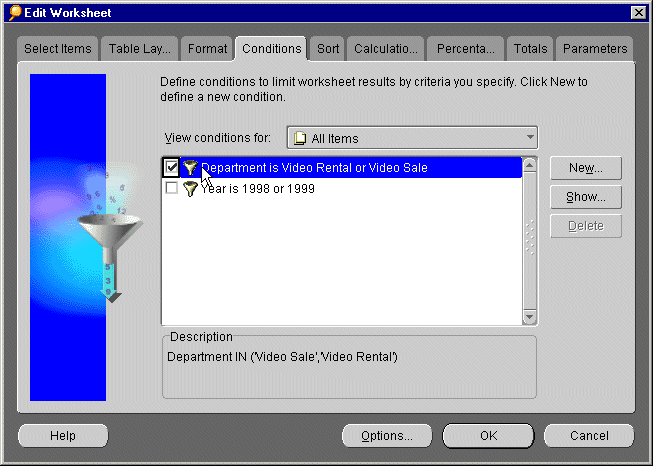
Click OK to apply the Condition to the data and see the results.
If a Condition statement does not find the exact data that you want, you can edit the statement. For example, if the statement finds data for 1998, but your database now includes data from 1999, you can edit the Condition to update it to find the newer data.
Deleting a Condition removes it permanently from the workbook. However, because you can turn Conditions on and off, you may not want to delete a Condition in case you'll need it in the future.
NOTE: You cannot edit Conditions created by the Discoverer Administrator. If you select one of these Conditions, the Edit button changes to Show. You can click the Show button to review the Condition and see its formula, but you cannot make changes. In addition, advanced Conditions containing subqueries created in Discoverer 3.1 cannot be reviewed or edited. A message tells you that the Condition cannot be reviewed or edited. You can still turn these Conditions on and off, however, to analyze your data in the way you want.
|
|
 Copyright © 2000 Oracle Corporation. All Rights Reserved. |
|