Printing Worksheets and Graphs
Discoverer provides the Print Wizard to help you print your worksheets and graphs. With the help of the Print Wizard, you can expect that what you see on screen prints out the same way on paper, including worksheet titles, graph titles and legends, and Page Items. You can print a single worksheet, all worksheets in a workbook, and all graphs associated with any worksheets. Worksheets and their graphs print sequentially so that each graph prints in order immediately after its worksheet.
If your worksheet contains Page Items, note that you can print exactly what you see on screen. To print other combinations of Page Items, first pivot the Page Items and then print your modified worksheet. To pivot Page Items, see "Pivoting Data". Also note that pivoting Page Items changes the content of your graph. Before printing, look at your graph to verify that it contains the data that you want to print.
Graphs always print on a single sheet of paper. However, within the boundaries of that sheet of paper you can choose to print the graph at different sizes. You can print the graph the same size that you see on screen or scale the graph to fill the entire sheet of paper or any smaller size. If what you see on screen is too large to fit onto a single sheet of paper, the Print Wizard automatically scales the graph to the correct size.
To print worksheets and their graphs:
- Open the worksheet that you want to print. Make sure it contains the combination of Page Items that you want.
- From the menu, choose File | Print. The Print Wizard dialog appears.
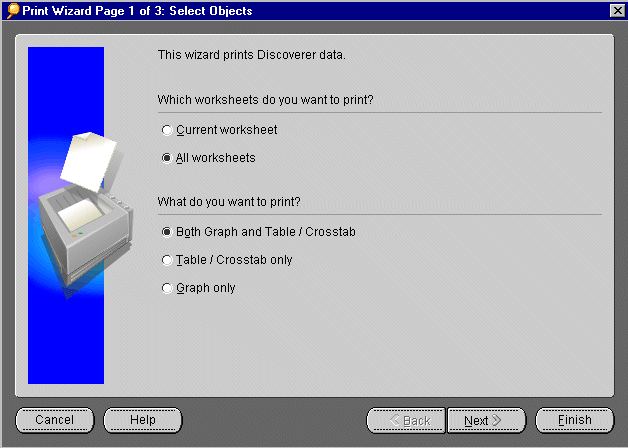
- Select which worksheets you want to print:
- Current worksheet--prints the currently open worksheet.
- All worksheets--prints all worksheets in the workbook.
- Select whether you want to print both the graph and its worksheet, only the worksheet, or only the graph. Click Next. If you choose to print only the worksheet, without any graphs, the Print Wizard takes you to the final dialog. Skip to step 6. Otherwise, the second Print Wizard dialog appears.
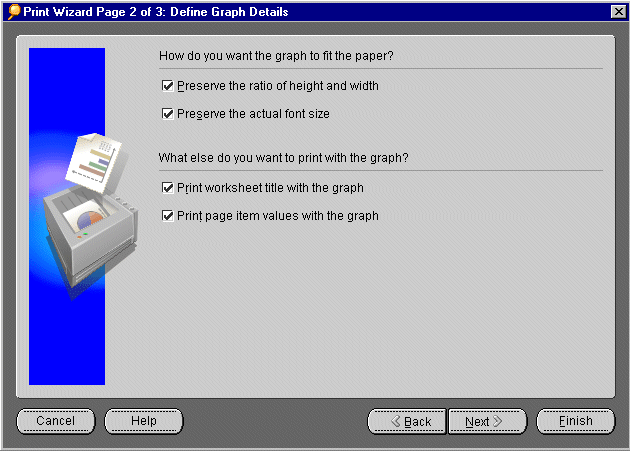
- Select the size that you want to print your graph:
- Preserve the ratio of height and width--If what you see on screen is larger than a piece of paper, this checkbox scales the graph smaller without distorting the graph.
- Preserve the actual font size--If the graph must be scaled to fit a piece of paper, this checkbox prevents the fonts from also becoming smaller.
Select the other graph elements that you want to print:
- Print worksheet title with the graph--A graph and its worksheet can have different titles. This checkbox prints the worksheet's title onto the paper.
- Print page item values with the graph--If your worksheet contains Page Items, this checkbox prints the Page Item values onto the paper; for example, "Region = East".
Click Next.
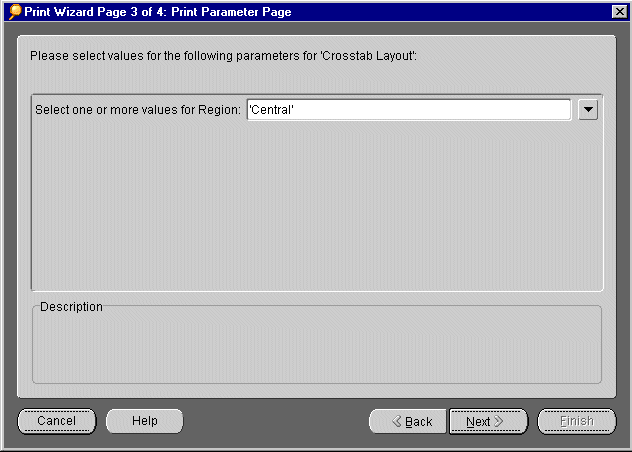
- If you have defined Parameters for the worksheet, the optional Print Parameter Page allows you to restrict your printout to certain Items. For example, if a Parameter is created on Year, this page may ask you to enter a Year or choose from a list of Years, e.g. 1998, 1999, or 2000. If you do not want to restrict your printout, close the Print Wizard, choose Tools\Parameters, and turn off any Parameters by de-selecting the Parameter check boxes, (see section on Creating Parameters).
- Select whether or not you want to supervise the printing process. Discoverer may occasionally give you alert messages to let you know that queries take a long time or that the database returns more data than the maximum set in the Options dialog's Query Governor tab (see "Setting Query Governor Options".).
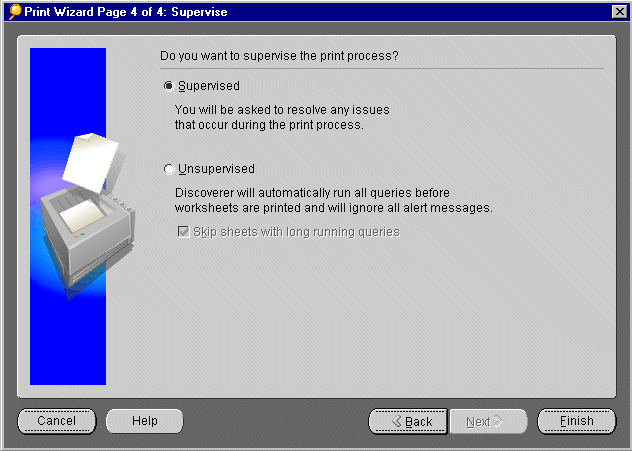
- Supervised--select this option if you want to see these alert messages while printing.
- Unsupervised--select this option to ignore any alert message while printing.
- Skip sheets with long running queries-- click this checkbox if you expect that some of the worksheets will take a long time to print and you don't want to wait. The Print Wizard prints the rest of the worksheets. You can print the slower worksheets later.
Note: If any worksheets contain parameters, Discoverer will still ask you to choose values for the parameters whether you choose Supervised or Unsupervised.
- Click Finish. The Print dialog belonging to your computer's operating system appears. In the Print dialog, you can choose a printer, paper size, and the number of copies that you want. Click OK to print your worksheets and graphs.
Note: To print other combinations of Page Items on the worksheet, first pivot the Page Items (see "Pivoting Data".) Then from the menu, choose File | Print again. Repeat the printing process for each combination of Page Items. Also note that pivoting Page Items changes the content of your graph. Before printing, look at your graph to verify that it contains the data that you want to print.


