Release 4.1
 Contents |
 Index |
| Discoverer 4i Plus Online Help Release 4.1 |
|
The Query Governor options help reduce the amount of time it takes to display data. You can set defaults for Summary Data and for Queries.
Using Summary Data loads data more quickly for the work you do most often. When you request data for a worksheet, Discoverer first checks Summary Tables set up by the Discoverer Administrator to see if their saved data satisfies your request and, if it does, loads the appropriate data quickly. If the Summary Tables' data does not satisfy your request, Discoverer then redirects the request to the detail data.
CAUTION: Do not use Summary Tables if you normally work with the most current data in the database. The saved data in the Summary Tables remains constant until updated with new data. Summary Tables should be updated periodically to incorporate new data.
The Discoverer Administrator creates Summary Tables based on the type of data and the type of queries you use most often. Normally, Summary Tables are for the queries that take a long time to aggregate and display data. Other queries that require less time to aggregate and join data might not need Summary Tables. See your Discoverer Administrator if you want to use Summary Tables.
The Query Governor options help you set limits on the amount of time a query should take to complete. Use these options to limit the time you wait for Discoverer to run a query. The options set time and size limits on data as it is being retrieved from the database.
Note: Your Discoverer Administrator determines the upper limits for the Query Governor options. For example, your Discoverer Administrator may determine that queries cannot run longer than 30 minutes. If you set the limit for 60 minutes, the numbers will change back to 30 automatically.
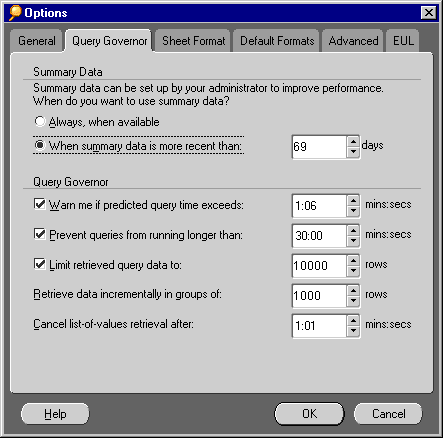
Always, when available--Select this option if time-sensitive data is not important to data analysis. Discoverer retrieves and displays saved data from the Summary Tables regardless of whether the data is current.
When summary data is more recent than--Select this option when time-sensitive data is necessary for worksheets. Click the up and down arrows to specify the number of days from the last data update. For example, if you're analyzing monthly data using Summary Tables, you want to make sure the data is less than thirty days old. If the Summary Tables' data has not been updated within the specified time, Discoverer does not use the Summary Tables to fulfill your query request. Instead Discoverer redirects your query request to the detail data and uses the latest data for the worksheet.
NOTE: Summary Data options can vary according to which Oracle database version you are using. If you are connected to an Oracle 8.1.6 database or later, these options relate to Materialized Views. See your Discoverer Administrator for more details.
Warn me if predicted query time exceeds--When requesting data for a worksheet, Discoverer estimates the time required to complete the query. Select this option if you want a message to warn that the query will take a long time to complete. The message appears only if the estimated completion time exceeds the period you specify, in MM:SS format, for this option.
Prevent queries from running longer than--Select this option to limit the time a query runs before it is cancelled. A warning message informs you if the query exceeds the set time, then Discoverer cancels the query. Normally, this option is selected if server performance is an issue because long running queries might affect server performance.
Limit retrieved query data to--This option sets the maximum number of rows to retrieve for a query. If the query returns more rows than the value you set here, a message informs you that not all data is retrieved and, consequently, the displayed data might not be complete.
Retrieve data incrementally in groups of--Set this option when the database contains large tables with many rows that might take a long time to retrieve. With this option selected, Discoverer retrieves rows of data in increments rather than all at the same time. The smaller the number of rows to retrieve as a group, the faster the initial retrieval. The default size of the data group is 250 rows, which equates to the first 10 pages of data at 25 rows per page. You can set the number of rows per page using the Rows per Page option on the Sheet Format tab.
Cancel list-of-values retrieval after--Some dialogs have a convenient drop-down list from which you can select a value for an option instead of manually typing the value. This is called a list of values. For example, when creating a condition for analyzing monthly sales data, you could either choose the value, July, from a list of months, or manually type the name "July" as part of the condition statement. But some large lists of values take a long time to retrieve from the database, such as a list of 20,000 part numbers. If you don't want to wait for Discoverer to retrieve these larger lists of values, click the up and down arrows to set the maximum amount of time you would wait for this list to appear. This option does not cancel Discoverer's retrieval of the actual data for a query. In the case of the part numbers, for example, all the data about the parts in stock, price per part, sales figures and so on, is displayed in the appropriate tables. Only the drop-down list of part numbers in various dialogs would not be available.
See also:
Setting General Options
Setting Sheet Format Options
Setting Default Format Options
Setting Advanced Options
Setting EUL Options
Using SQL
|
|
 Copyright © 2000 Oracle Corporation. All Rights Reserved. |
|