Release 4.1
 Contents |
 Index |
| Discoverer 4i Plus Online Help Release 4.1 |
|
The Advanced options are for turning on/off automatic querying and for catching join errors that relate to database relationships.
CAUTION: Do not change these options without assistance from the Discoverer Administrator.
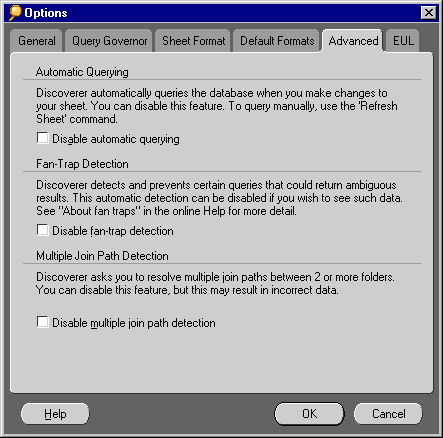
Automatic Querying--When you make a change to a worksheet that affects the data results (as opposed to formatting changes), Discoverer automatically re-queries the database to display the appropriate results based on your changes. However, you can use this option to disable the automatic query feature in case you want to make changes to the worksheet but not have Discoverer update the data. See "About Automatic Querying" for more details.
Fan-Trap Detection--When this check box is NOT selected, Discoverer automatically detects and resolves fan trap and chasm trap queries into multiple SQL statements to obtain normal expected results. If you disable Fan Trap detection, this may result in these queries generating cartesian products, with potentially misleading results.
Select this check box if you want to prevent Discoverer from checking for fan traps. We recommend that you DO NOT select this check box unless advised to do so by your Discoverer Administrator. See "About Fan-Traps" for more details.
Multiple Join Detection--Check this option to turn off Discoverer's automatic detection and prevention of worksheet arrangements that have potential multiple join paths. See "About Multiple Join Paths" for more details.
While working with a worksheet, you can make changes that affect the data being displayed. For example, if you add a new data item or change a calculation that produces a data column, the displayed data may not reflect the change until Discoverer re-queries the database. With automatic querying, Discoverer automatically re-queries the database to get the updated data to display. In some cases, however, you may not want Discoverer to automatically re-query the database. For example, if you intend to make several changes that affect the data, then you don't want Discoverer to re-query the database until you're finished with the changes.
Using the Advanced Options dialog you can turn on and off the automatic re-querying feature. If it is turned off and you want Discoverer to re-query the database, choose Sheet | Refresh Sheet from the menu.
A fan-trap occurs when the data items in two folders are not directly related (such as with a Customer ID), but do have a relationship based on the data items in a third folder.
As illustrated in Figure 5-1, the database contains three folders--Departments, Employees, and Locations. Each employee is associated with a single department because each employee works in only one department. The departments, however, are associated with multiple locations because departments can have offices in different cities. Consequently, because of the mutual association of employees and locations with the Departments folder, employees become unintentionally associated with multiple locations. This, of course, is incorrect because employees can only be in one location. A query to count the number of employees at each location and department, for example, produces an incorrect result. The same employee is counted at multiple locations because the departments are at multiple locations. In the example below, the real number of employees is four, but the query produces a count of eight employees--Clark, Miller, and Scott are counted for both London and Tokyo, and King is counted for both San Francisco and Amsterdam.
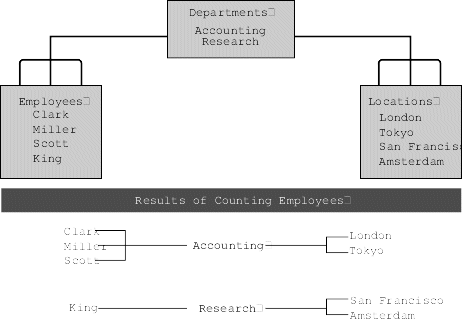
As you're creating a new worksheet, Discoverer automatically detects and warns if the data items selected for the worksheet can possibly lead to a fan-trap. Note that Discoverer merely warns of a potential for a fan-trap and does not automatically prevent a fan-trap situation from occurring. Sometimes a Discoverer Administrator intentionally associates folders in a way that looks like a fan-trap. For example, the association of a single employee to multiple locations can be useful for counting the number of employees who might travel to a location.
Normally, however, fan-traps are not intentional in a database. If Discoverer warns of a fan-trap, please contact your Discoverer Administrator who can determine if the fan-trap association is intentional or if the database's organization needs to be modified.
Discoverer automatically detects fan-traps only if the Disable Fan-Trap Detection option is deselected in the Options dialog. If the option is not selected, Discoverer builds new worksheets without checking for, or warning about, potential fan-traps.
When you create new worksheets, the data items in the worksheets are often stored in multiple folders in the database. Discoverer checks to make sure that these multiple folders have a clear, unambiguous relationship between them, and therefore, that the relationships among the data items is also clear and unambiguous.
For example, suppose a database contains two folders--one for information about sales orders and another for information about customers. Both folders contain the data item "Customer ID" because each sales order is for a customer specified by the Customer ID, and each customer is identified in the Customer folder by an ID number. In this case, if you run a query about sales order details and also want to see customer details, such as first and last name, Discoverer can clearly determine which customers are associated with each sale by relating the Customer ID to the sales details and customer details.
However, some databases organize information so the relationships between items in different folders is ambiguous. This means that data items can be associated with each other in multiple ways, which is a situation known as a "multiple join path." As you are creating new worksheets, Discoverer can automatically detect and warn you if the potential for multiple join paths exists because, if it does, Discoverer might associate the items in a way you did not expect or intend. Thus, when you query the database, the results might not be what you intend either.
The warning that a multiple join path situation exists is not an error message; the warning merely advises you that the database contains relationships among data items that you might not know exist. If Discoverer detects and warns you of a multiple join path situation, please contact your Discoverer Administrator who can determine if the database's organization needs to be modified.
Discoverer automatically detects multiple join paths only if the Disable Multiple Join Path Detection option is deselected on the Options dialog. If that option is not selected, Discoverer builds your new worksheets without checking for or warning you about multiple join paths.
See also:
Setting Query Governor Options
Setting Sheet Format Options
Setting Default Format Options
Setting General Options
Setting EUL Options
Using SQL
|
|
 Copyright © 2000 Oracle Corporation. All Rights Reserved. |
|