Release 4.1
 Contents |
 Index |
| Discoverer 4i Plus Online Help Release 4.1 |
|
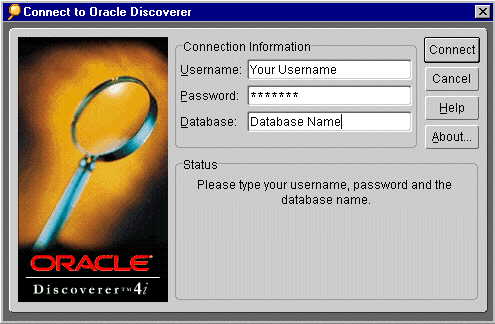
If you have questions about the Discoverer workbook names, whether you have access to them, the location of workbooks on company servers, and so on, see your Discoverer Administrator. The Discoverer Administrator also supplies the passwords and server access instructions that you need to connect to your company's database and open a Discoverer workbook.
To open a workbook you first connect to your company's database. Choose the workbook to open from the Open Workbook from Database dialog. One workbook can be open at a time. To open another workbook you close the workbook already opened. You can open a workbook in your database account, or in another person's account which is shared to you.
Click to learn how
To connect to your company's database:
To open a workbook:
To open a scheduled workbook:
See also:
Viewing Scheduled Workbooks
Opening Workbooks in a Non-Oracle Database
Creating a New Workbook
You may also see a dialog about security. This security dialog appears because Discoverer requests extra permissions so it can access the Discoverer server or local devices, such as a printer. If you don't want to see this dialog every time you connect, click the option "Always trust content from Oracle Corporation." Click Yes (or OK or Grant depending on the type of dialog) to continue launching Discoverer.
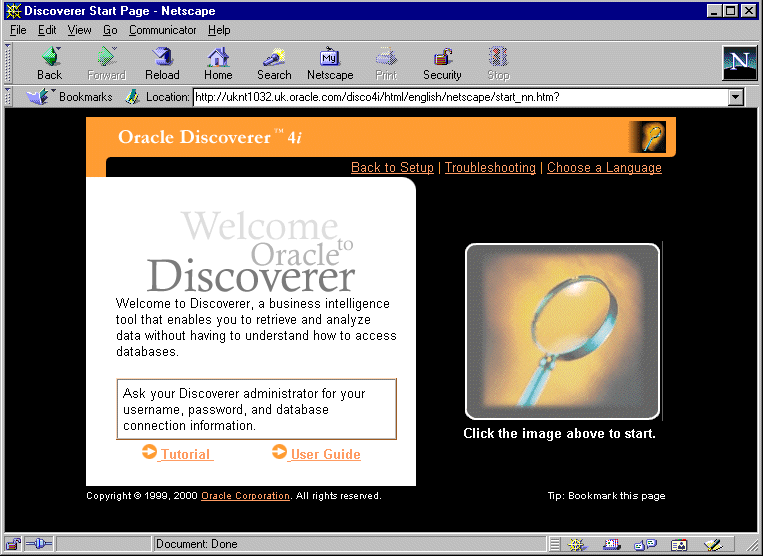
A Welcome page appears.
The Connect to Oracle Discoverer dialog appears.
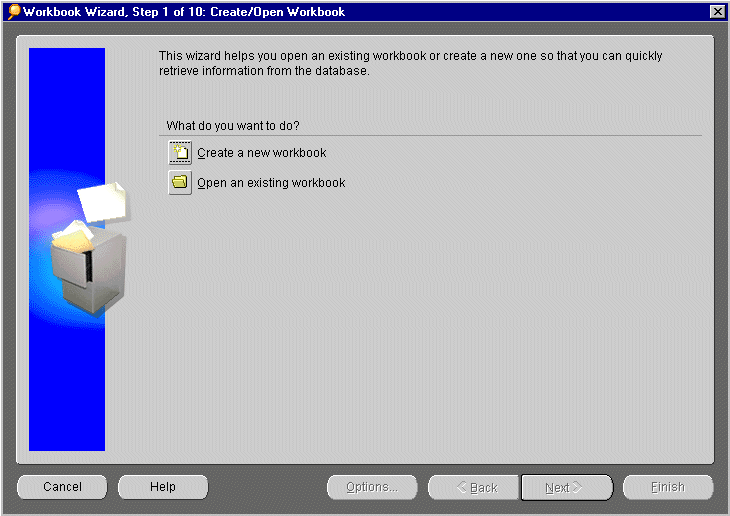
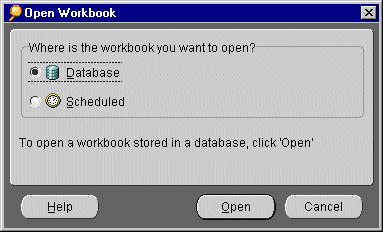
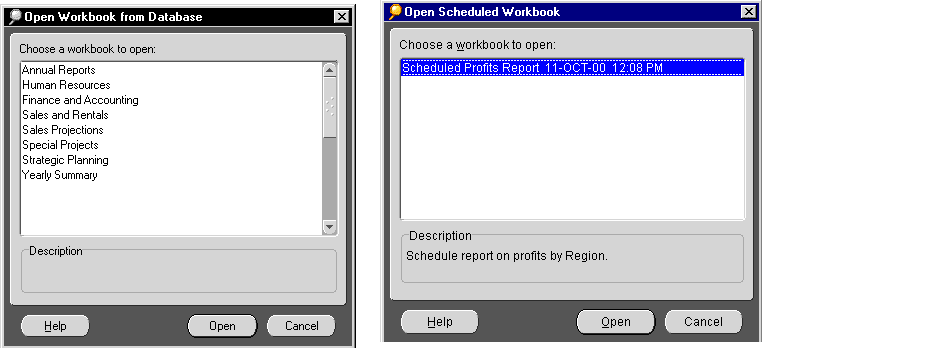
The dialog then shows options for opening a workbook from the database or a scheduled workbook.
Database--displays a list of workbooks in the database to which you are connected.
Scheduled--displays a list of scheduled workbooks that have run and are now available. Scheduled workbooks run automatically at the time you specify, usually overnight, on the weekend, or at some periodic interval. You can view the most current results when you open the scheduled workbooks.
NOTE: If the button for opening a workbook from the database is not available, you can only open scheduled workbooks. Your Discoverer Administrator decides the types of workbooks you can open.
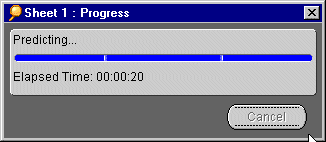
The workbook opens. Discoverer evaluates the query to determine how much time it will take to open the first worksheet. Depending on the default options you've selected for opening worksheets, a progress dialog shows you the time estimate for loading the first sheet. See Setting General Options for the choices to load a worksheet.
The worksheet appears. If the workbook has more than one worksheet, a series of tabs across the bottom of the window name the various worksheets.
NOTE: The first worksheet in the workbook is not necessarily the first active worksheet.
Click Yes. The query finds the most recent data and fills in the worksheet.
Click No. The worksheet opens but does not contain any data. Click No if you want to see another worksheet with data first. Click that other worksheet's tab at the bottom of the window.
NOTE: If you click No, you can always run the query for the worksheet at a later time by choosing Sheet | Refresh Sheet.
If you click Yes, and if the workbook has Parameters for the data, you'll see a dialog for selecting those Parameters.
Note: Only one workbook at a time can be open. If you choose File | Open while a workbook is already open, the current workbook closes automatically.
You can connect to only one database account at a time. For example, if you are connected to Account1 but want to open a workbook saved in Account2, you must disconnect from Account1 then connect to Account2. However, if you have access to a shared workbook, you can open that workbook in your current account.
If your business uses non-Oracle databases, your Discoverer Administrator can set up Discoverer to open workbooks in those databases. You can then use Discoverer to get the data you want. However, depending on the type of database, you might not be able to use all the data access and analysis features available with Oracle databases.
The process to open workbooks in non-Oracle databases is essentially the same as opening a workbook in an Oracle database. Please see your Discoverer Administrator for the correct steps to open the workbooks in non-Oracle databases.
|
|
 Copyright © 2000 Oracle Corporation. All Rights Reserved. |
|