Release 4.1
 Contents |
 Index |
| Discoverer 4i Plus Online Help Release 4.1 |
|
While working with Discoverer, you may want to create additional workbooks and worksheets of your own. For example, you may want to consolidate project-specific information in a separate workbook that you share with other team members.
If you have the appropriate access rights (granted by the Discoverer Administrator), you can create workbooks and worksheets.
NOTE: You use the same process to create workbooks and worksheets. In fact, to create a new workbook, you create the initial worksheet for the new workbook. Thus, the steps described in this section are for both processes--building a new workbook and building a new worksheet.
Click to learn how
To create a new workbook or worksheet:
To add an item to the current worksheet:
To delete an item from the current worksheet:
See also:
Opening an Existing Workbook
Editing a Worksheet
Saving a Workbook
Refreshing Data in a Workbook
Deleting a Workbook
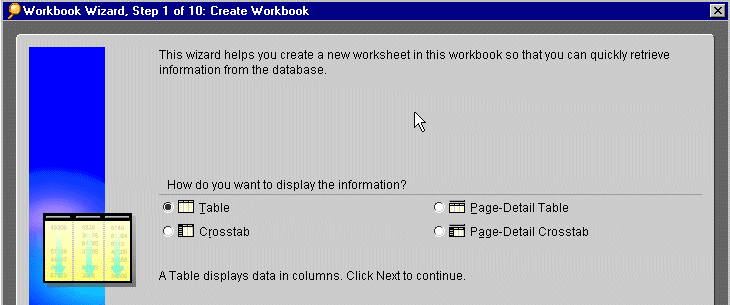
The Worksheet Wizard dialog appears. This dialog is where you select the layout--table or crosstab--that you want to use to display the data on the new worksheet.
NOTE: The sample dialogs in the rest of this section are for creating a new worksheet. The dialogs for creating a new workbook are the same, except the dialog titles are "Create Workbook" instead of "Create Worksheet."
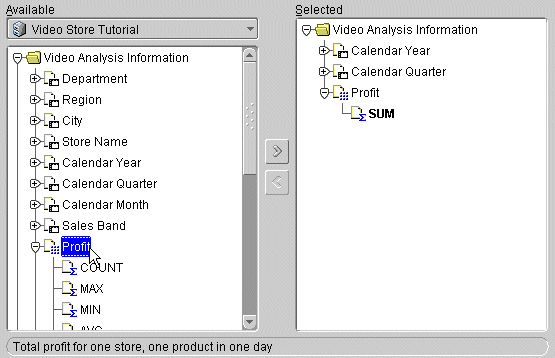
This dialog lists the data in the business area that you can use to build the new worksheet. The following table describes the icons that you may see on the dialog.
Folders containing items available for the current worksheet are active. Others are grayed out.
Items may have plus signs next to them as well, indicating you can select values for those items as well. For example, a City item contains the names of the cities in the database. You can select a specific city to add to the worksheet. By doing this, you are implicitly creating and activating the Condition `City' = <name>.
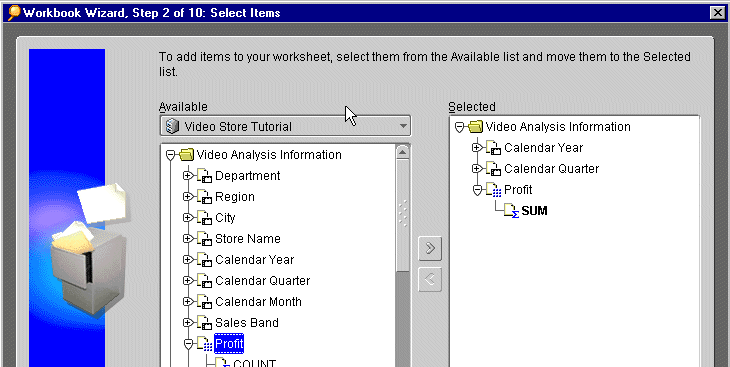
You can select data at various levels in the Available list. For example, selecting a folder and moving it to the Selected list, moves all the data within the folder to the list. Similarly, moving an item to the Selected list moves all values in it to the list and, ultimately, to the worksheet. For example, moving the City item to the Selected list results in the names of all the cities being on the worksheet.
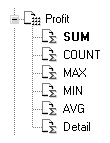
Moving a numeric item to the Selected list automatically includes its default aggregation functions. All values are automatically included as well. Selecting and moving an axis item, however, does not automatically include aggregate functions.
To remove an item from the Selected list, click it and drag it back to the Available list, or click the Left Arrow button.
NOTE: Contact your Discoverer Administrator to describe the specific choices you are given. Often, your Discoverer Administrator only intended one of these options to be available, and they can modify a business area to remove the extra option. For more information about join paths, see "About Multiple Join Paths".
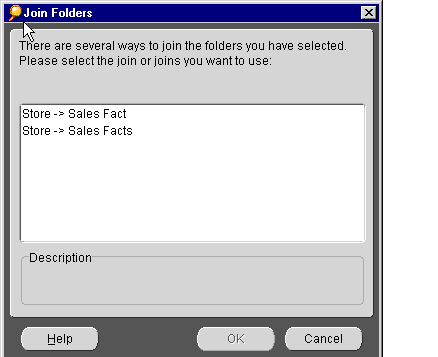
NOTE: To change selections on the previous pages, click the Back button.
|
|
 Copyright © 2000 Oracle Corporation. All Rights Reserved. |
|