Saving a Workbook
Your options for saving a workbook depend on whether you have the privileges to save it to the database.
- If you are the owner of the workbook, and you have privileges to save it to the database, you can save the workbook and any changes to it.
- If you open a shared workbook you can use the Save As command to save the workbook under a different workbook name, if you have privileges to save workbooks to the database. However, if you don't have privileges to save workbooks to the database, you can view and edit the workbook but cannot save it. This precludes people without the proper privileges from overwriting someone else's workbook.
See your Discoverer Administrator to find out what type of privileges you have to save workbooks.
- Choose one of the following:
- Choose File | Save. The changes are saved and the workbook remains open.
- To close and save a workbook at the same time, choose File | Close. If you haven't made changes to any worksheet in the workbook, it closes. If the workbook contains any unsaved changes on any worksheet, a dialog reminds you to save the changes.
- To save the workbook under a new workbook name, choose File | Save As. The dialog appears for saving a workbook under a new name.
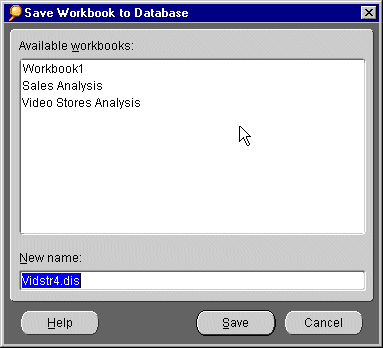
- Enter a new name in the text box.
- Click Save to save the changes
Click Cancel to keep the workbook open without saving it.
To rename a worksheet:
- Open the workbook that contains the sheet you want to rename.
- Do one of the following:
- Double-click the tab at the bottom of the worksheet you want to rename.
- From the menu, choose Sheet | Rename Sheet.
The Rename Worksheet dialog appears.
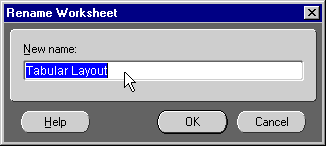
- In the New name text field, type the new name for the worksheet.
- Click OK. The worksheet's new name appears on its tab, which is located on the bottom of the worksheet.
To re-order worksheets in a workbook:
- Open the workbook that contains the worksheets you want to re-order.
- From the menu, choose Sheet | Move Sheet.
The Move Worksheets dialog appears.
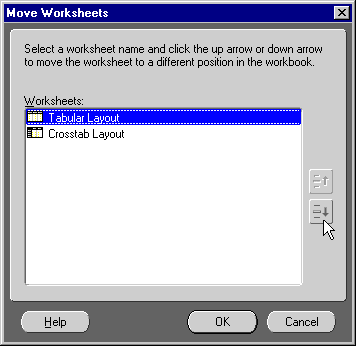
- Click on the name of a worksheet and then click the up arrow or down arrow. The worksheet moves up or down to a different position.
- Repeat step 3 for every worksheet you want to re-order.
- When you are finished, click OK.


