Release 4.1
 Contents |
 Index |
| Discoverer 4i Plus Online Help Release 4.1 |
|
Calculations can play an important part when analyzing data. Discoverer has a full range of common mathematical functions and operators to calculate results on your worksheets. Discoverer displays the results of calculations as new columns on a worksheet, or the calculations can be part of other calculations.
Click to learn more about
Creating and Editing Calculations
See also:
Pivoting Data
Drilling Into and Out of the Data
Duplicating Tables and Crosstabs
Sorting Data
Totaling Numeric Data
Calculating Percentages
Displaying Existing Percentages
Calculation Examples
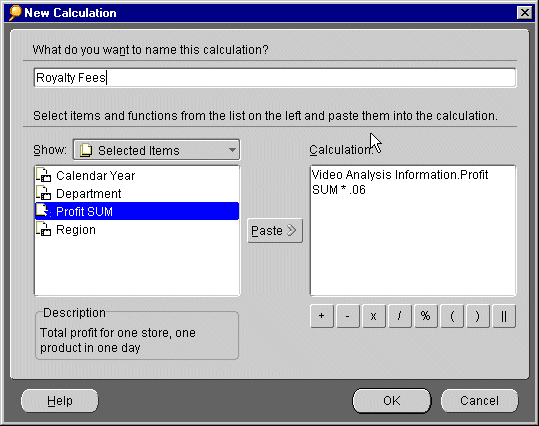
Here is an example of a simple calculation.
This example uses the Profit SUM data item and multiplies it by .06 to produce the royalty rate. The answer appears in a new column with a name you type on the New Calculation dialog. In this example it is Royalty Fees.
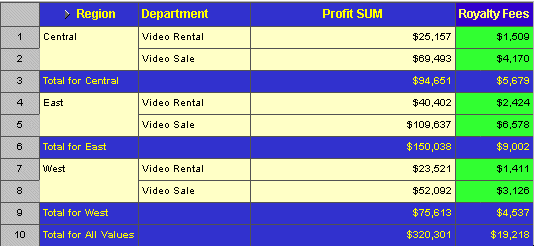
The following figure shows the results of applying the calculation.
Not all calculations need to use Items or Functions as part of the calculation formula. You can type a formula directly into the Calculation box.
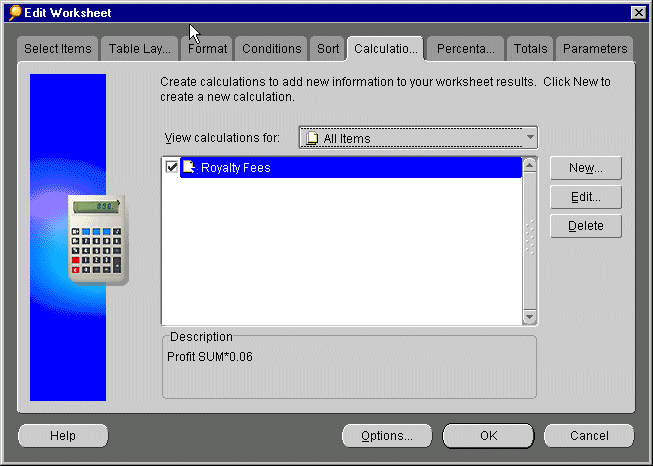
You use the Calculations dialog to create calculations.
This dialog shows calculations already created for the worksheet. Checkmarked calculations are active and apply to the worksheet.
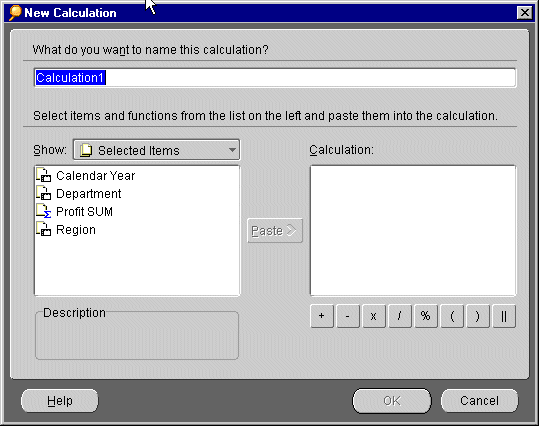
Functions--Lists a wide range of mathematical functions that you can apply to the formula.
Selected Items--Lists the items in the worksheet; this is helpful because you don't have to remember the name of an item in order to include it in a formula.
Available Items--Lists all the items available for the worksheet even if the items are not currently used on the worksheet.
Calculations--Lists the calculations defined for the worksheet in case you want to use an existing calculation as part of your new calculation.
Parameters--Lists the parameters defined for the worksheet.
|
|
 Copyright © 2000 Oracle Corporation. All Rights Reserved. |
|