Calculating Percentages
Calculating percentages of numbers is a typical data analysis task. Using the Percentages feature, you specify the data to use to calculate a percentage as well as the value to use to represent the percentage (Grand Total, Subtotal, and so on).
Note: Due to rounding of data, percentages might not add exactly to 100.
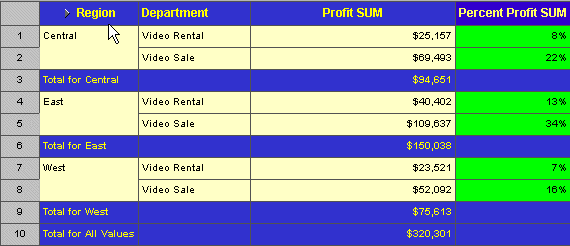
In the following example, Percent Profit SUM shows the Profit SUM for each Region as a percentage of total profit for all three Regions.
Click to learn more about
Displaying Existing Percentages
Creating a New Percentage
Displaying Existing Percentages
See also:
Pivoting Data
Drilling Into and Out of the Data
Duplicating Tables and Crosstabs
Adding Calculations to Worksheets
Totaling Numeric Data
Sorting Data
You can define many Percentages definitions and then display them if you want on the worksheet. You can also display the percentage of Subtotals and Grand Totals of the data.
To display percentages on a worksheet:
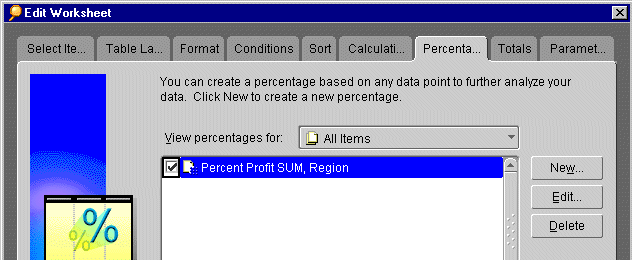
- From the menu, choose Tools | Percentages. The Edit Worksheet dialog appear with the Percentages tab selected. It shows the percentages already defined for the worksheet.
- Click the box in front of a percentage definition so a checkmark appears.
- Click OK.
Discoverer now computes the percentages and displays them on the worksheet.
To remove the percentages from the worksheet:
- From the menu, choose Tools | Percentages. The Percentages dialog appears.
- Click the checkmark box(es) to remove the checkmark.
- Click OK to remove the percentages from the worksheet.
Creating a New Percentage
Creating a new percentage definition has three basic steps:
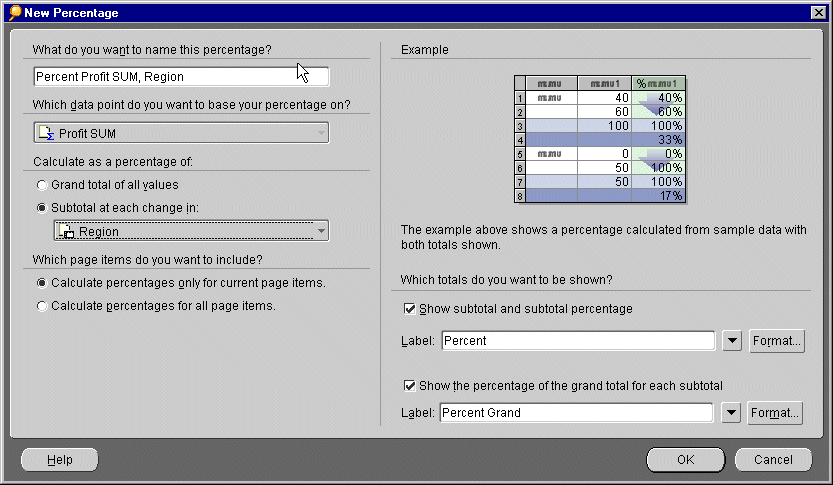
- From the menu, choose Tools | Percentages. The Edit Worksheet dialog appears with the Percentages tab selected.
- Click the New button. The dialog for a new definition appears. The following example is for creating a new percentage for a crosstab worksheet. The dialog for a table worksheet is similar.
- Click in the box for the name of the percentage definition and type a name for it.
- Click the drop-down list to see the list of data points to use to calculate percentages. Select the data item from the list.
- Select one of the options to calculate a percentage.
The following table lists your choices:
The illustration on the right side of the dialog shows a representative worksheet containing percentage columns based on your selections.
- Select to display the percentages for all page items, or only for the current page items.
- On the right side of the dialog, select whether to display the total amount as well as the percentage. For example, if you select to calculate percentages for subtotals at each change in the City data item, you can also select to display the subtotals and their percentages, and subtotals as a percentage of the Grand Total.
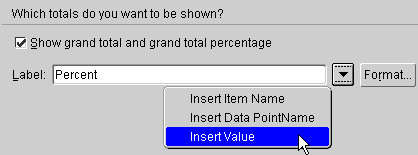
- Type labels for the percentages, or click the drop-down lists for labels and choose additional options.
The options from the drop-down menu produce labels that can change as the data changes by adding text codes such as "&Item" and "&Value" where you insert them in the label text. In the actual labels in the table or crosstab, the ampersand (&) will not appear, and appropriate names from the table or crosstab will be inserted in place of the words "Item" or" Value".
The table below shows some examples.
To remove options from the labels, click in the label text in the dialog and edit it as you would regular text.
Click OK to return to the Percentages dialog with the new definition. Click OK to display the new percentage to the worksheet.
To edit a percentage definition:
- From the menu, choose Tools | Percentages. The Edit Worksheet dialog appears with the Percentages tab selected.
- Select the definition you want to edit.
- Click the Edit button. The Edit Percentage dialog appears.
- Make the changes you want.
- Click OK. The percentage definition is now edited.