Release 4.1
 Contents |
 Index |
| Discoverer 4i Plus Online Help Release 4.1 |
|
When working with numeric information, you often need to see various summations of the data. Totals can sum rows and columns of numbers, find averages and standard deviation, compute subtotals and grand totals, and so on. When you add a Total to a worksheet, Discoverer automatically adds a column or row to the worksheet for the totals data.
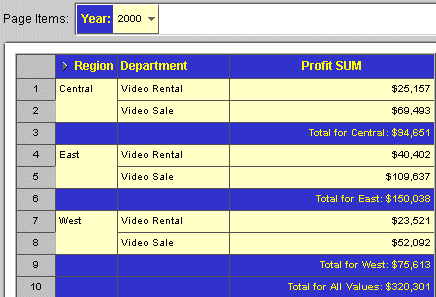
In the example below, the Worksheet contains a sub-total for each Region and a grand total for all Regions.
Click to learn more about
Displaying Existing Totals
Creating a New Total
Editing a Totals Definition
See also:
Pivoting Data
Drilling Into and Out of the Data
Duplicating Tables and Crosstabs
Adding Calculations to Worksheets
Sorting Data
Calculating Percentages
You can define totals for a worksheet and then display them on the worksheet or not.
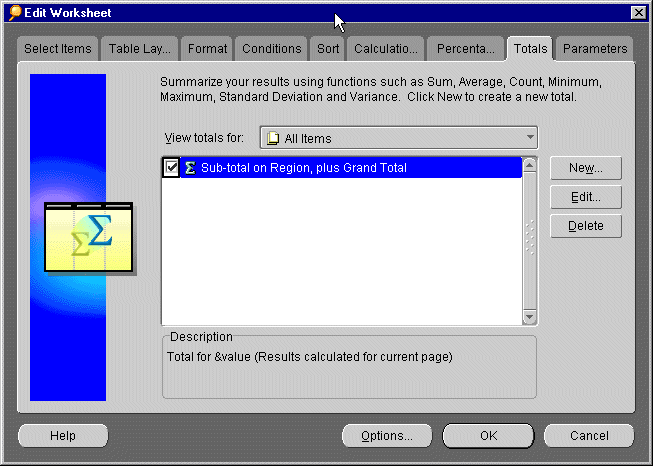
Creating a new totals definition has three steps:
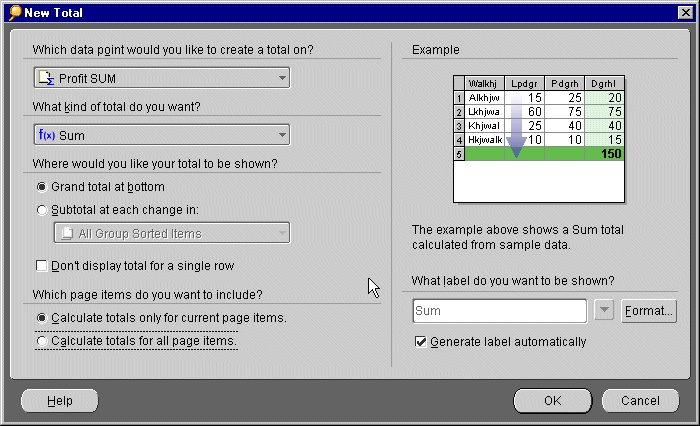
You can also create totals for all the data points on the worksheet by selecting All Data Points from the drop-down list.
The options are:
Sum--Adds all the values.
Average--Adds all the values and divides by the number of values.
Average Distinct--Adds all the unique values and divides by that number of values. Duplicated values are not included. For example, if a set of values includes 3, 3, 4, 5, 5, 6, and 7, the calculation of the distinct average is 3+4+5+6+7 divided by 5.The duplicate values of 3 and 5 are not included.
Count--Counts the total number of values.
Count Distinct--Counts the number of unique values.
Minimum--Finds the lowest value.
Maximum--Finds the highest value.
Standard Deviation--Calculates the standard deviation. Standard deviation is the square root of the variance of the values.
Standard Deviation Distinct--Calculates the standard deviation, but only using unique, unduplicated values.
Sum Distinct--Adds the values, but only using unique, unduplicated values. for example, the sum distinct of 3, 3, 4, 5 is 3+4+5=12. The duplicate value of 3 is not included.
Variance--Calculates the variance. Variance is the sum of the squares of the differences between each value and the arithmetic mean, all divided by the number of values.
Variance Distinct--Calculates the variance, but only using unique, unduplicated values.
Percentage of Grand--Calculates the Grand Total of the row or column, then finds the percentage of the current column or row of the Grand Total.
Percentage of Grand Distinct--Calculates the percentage of the Grand Total of the row or column, but only using unique, unduplicated values.
Grand total at bottom--Calculates the Grand Total for a column and places it after the last row of the table or crosstab.
Grand total on right (crosstab only)--Calculates the Grand Total for a row and displays it in a column on the right side of the crosstab.
Subtotal at each change in--click the drop-down arrow to select the data item to use for the totals. For example, if you sort the data by Region, and want to see profits by region, select Region as the data item. Then, Discoverer automatically displays the total profit for each region on a separate line.
All Group Sorted Items--displays totals for items set to be group sorted. For example, if the table contains two columns of numeric data set to be group sorted, subtotals are displayed for both columns. Data points not appropriate for the type of total are not displayed.
For example, Region is a set of data points but summing Region by its data points doesn't make sense--it would be like trying to add "Central" to "East". In this case, Regions are not summed even if it is a group sorted item.
A specific numeric data point (such as Profit SUM in the example)--displays totals for the selected set of data points.
A non-numeric data point (such as Region in the example)--when you select a non-numeric set of data points, the options for the totals in the first drop-down list are limited to only those options that apply to non-numeric data points. For example, if you select Region, sum of regions does not make sense. The only totals that make sense for non-numeric data points are Count, Count Distinct, Maximum, and Minimum.
Don't display subtotal for a single row--If the group of data consists of a single row, do not display a subtotal for it (the row's data value and subtotal are the same).
You can click the drop-down list for labels and choose additional options for the title from it. The options from the drop-down list produce labels that can change as the data changes by adding text codes (such as "&Item" and "&Value") to the label. In the actual labels in the table or crosstab, the ampersand (&) will not appear, and appropriate names from the table or crosstab will be inserted in place of the words "Item" or "Value".
This table shows some examples.
If the total calculates for all data points (as selected at the top of the dialog), the labels can appear for each appropriate name. For example, when totaling two items, and you select Insert Item Name (&Name), labels for both item names appear in the data or crosstab.
To remove options from the labels, click in the label text in the dialog and edit it as you would regular text.
To edit a totals definition:
|
|
 Copyright © 2000 Oracle Corporation. All Rights Reserved. |
|